How Can We Help?
Search for answers or browse our knowledge base.
Remove a User
Overview
If a user no longer needs an account you can delete or remove it. They will not be a part of the Active User Headcount.
User List
Click the Users option under the Admin(Dept) section.
Select the User List option.
- The admin can select the number of entries they would like to see per page on the left side.
- On the right side, the admin can choose in which format (CSV or PDF) they want to download the User List or add a New User.
- In case the admin has too many Entries, the admin may use the Search option on the right side.

How to Remove a User?
Click the Users option under the Admin section.
Select the User List option.
Under Actions, click the trash icon. This will provide you with two options, Suspend or Delete.
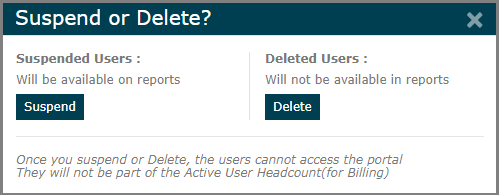
- Suspend- Suspending a User will not remove the User from the User list. They will be denied access to the portal until resumed. Suspended Users will be available on reports and will be able to log in again.
NOTE: Suspended Users will be a part of the Active User Headcount. You can Resume a User from Suspension whenever you want by clicking the yellow trash icon found under the Actions.
- Delete- Deleting a user will remove the User from the User list. They will be denied access to the portal until reactivated. Deleted Users will not be available on reports and won’t be able to log in again.
NOTE: Deleted Users will not be a part of the Active User Headcount.