Search for answers or browse our knowledge base.
Enroll a User
Overview
You can enroll a User in a particular course to impart knowledge about that course to the User. All course participants are enrolled in the course and assigned an appropriate role.
Manage Enrolment
Click the Courses option under the Admin(Dept) section.
Select the Manage Enrolment option.
In case the learner has too many Courses, the learner may use the Search option.
The learner can select whether to view the Courses in Grid/List format by selecting the desired option on the top right side.
How to Enroll a User?
Click the Courses option under the Admin section.
Select the Manage Enrolment option.
Click the Enroll option assigned to the Course of your choice.
The Category of the Course is selected by default, if you wish to change the course select the category of the course you want.
The Course name is selected by default, if you wish to change the Course or add a Course of the selected Category you can do so by clicking the entry field and selecting the Course of your choice.

The Due Date is applicable only for the enrolled user(s).
NOTE: When “None” is selected, the course will not have an expiry date.
When “Fixed” is selected, the course will expire on the due date.
When “Relative” is selected, the course will expire after the number of days entered.
Select the checkbox if you want to mark this Course as Mandatory for the User. If it is marked as mandatory it will be displayed on the user’s dashboard.
The User Category is used to find the user(s) based on classification. For example – if you choose Manager as the Category and then choose a particular Manager, all the Users under that Manager will be shown in Other Users.
In Other Users, Search by Name or Email address for a particular User.
Click the User selected and use the arrow pointing towards the left to move the User to Enrolled Users.
Click Continue to successfully Enroll a User.
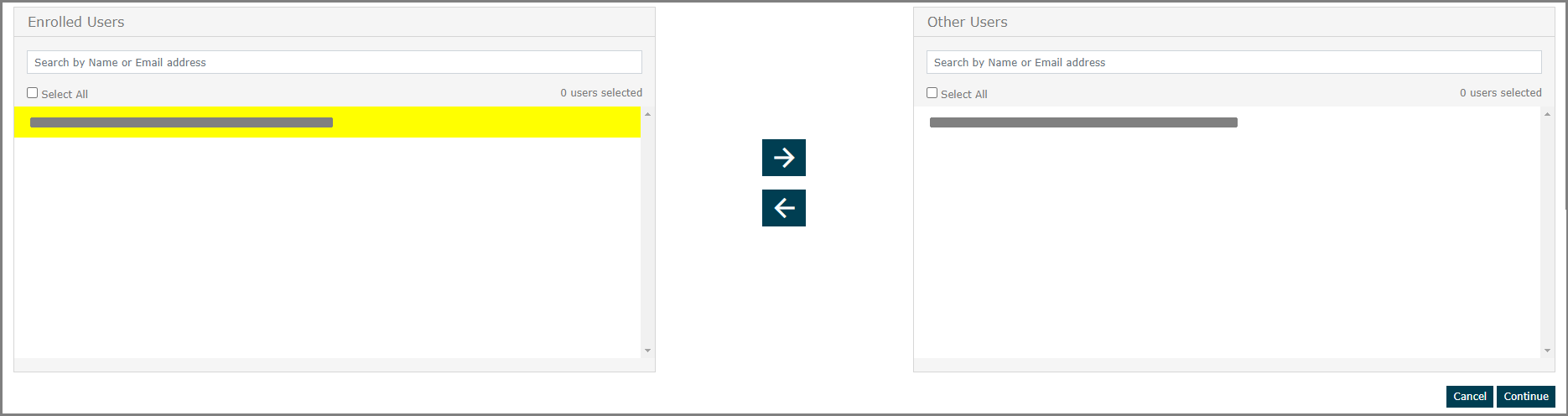
NOTE: In Enrolled Users, Search by Name or Email address for a particular User.
Click the User selected and use the arrow pointing towards the right to move the User to Other Users.
NOTE: Select the “Select All” checkbox to select all the users.
Users who are enrolled through cohort cannot be unenrolled.