Search for answers or browse our knowledge base.
Nominate a User
Overview
You can nominate a user to become a part of the course you want. If a user accepts the nomination, then the user can access the course.
How to Nominate a User?
Click the Courses option under the Admin(Dept) section.
Select the Manage Nominations option.

On the top left side, use the dropdown menu to find the choice of Nominations you want.
On the left side, the learner can choose how many Entries they want to see on a page.
In case the learner has too many Entries, the learner may use the Search option on the right side.
In the row of the desired Course, click the gear icon under Action.
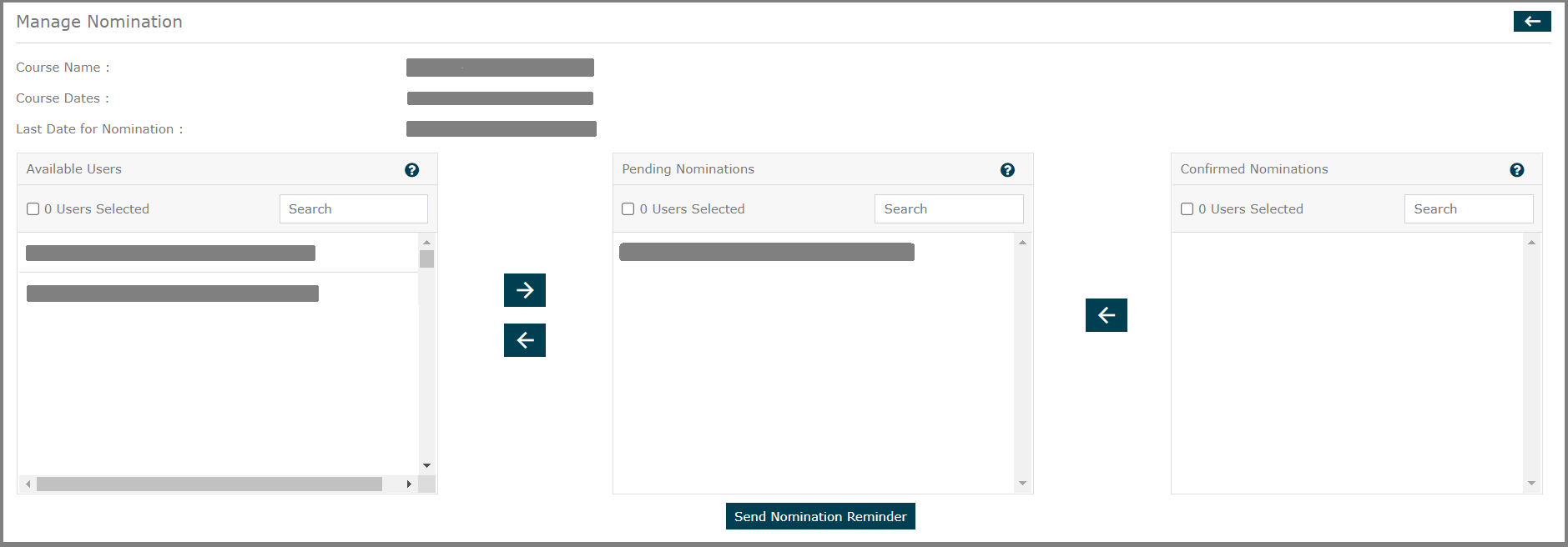
Under Available Users, select the user you want to nominate and move that user to the Pending Nominations by using the right arrow button.
NOTE: In case there are many Users, you can use the Search option on the right.
Select 0 Users Selected to select all the Users listed.
The number of Nominations allowed per course is set by your organization Admin.
Click Send Nomination Reminder to notify the user about the course nomination.
NOTE: Once a User accepts the Nomination he will be listed under Confirmed Nominations.