Search for answers or browse our knowledge base.
Attendance Reports
Overview
Attendance Report shows the attendance status for the learners which are date and period-specific. Point system attendance requires you to add points to a user’s record if they are Present, Late, Excused, or Absent.
How to get an Attendance Report?
Click the Report option under the Admin(Dept) section.
Select the Attendance Report option.
Use the dropdown menu to find the choice of Course you want.
Then, if any use the next dropdown menu to find the choice of Sessions/Groups you want.
Select Get Report to generate an attendance report successfully.
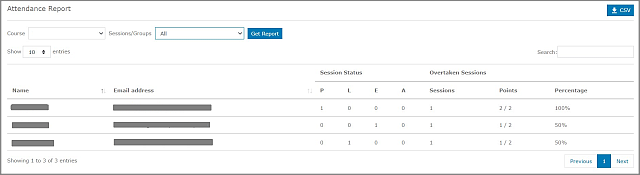
On the left side, the learner can choose how many Entries they want to see on a page.
In case the learner has too many Entries, the learner may use the Search option on the right side.
NOTE: On the top right side, the learner can download the Certified Learners Report in CSV format by clicking the CSV button.
The P, L, E, and A on this page stand for Present, Late, Excused, and Absent respectively.