Search for answers or browse our knowledge base.
Confirm a User
Overview
The Confirm action is for confirming User accounts created through self-registration from the sign-up page. This action enables department admins to Confirm accounts for their department Users.
How to Confirm a User?
Click the Users option under the Admin(Dept) section.
Select the Confirm Users option.
The admin can select the number of entries they would like to see per page on the left side.
In case the admin has too many Entries, the admin may use the Search option on the right side.
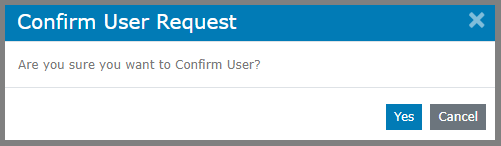
Click the tick option to Confirm a User.
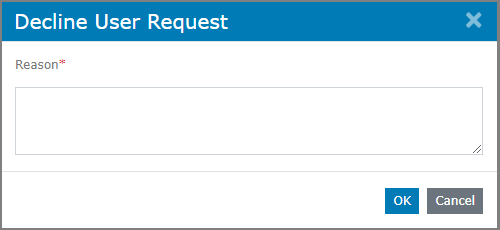
Click the Cross option to decline a user’s request.
The admin has to enter a reason for declining the user request.
Click the eye option to view all the details of that User.

Click Logs on the top right side of your screen to get all accepted/rejected users’ records.
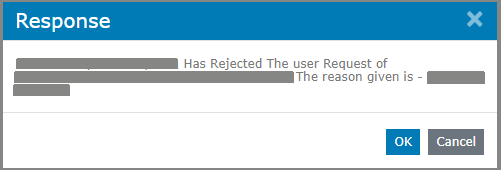
 The reason for a user being rejected can be seen by clicking the icon under Comments.