Search for answers or browse our knowledge base.
Adding an Announcement
Overview
Announcements summarize a discussion or point out something important related to the organization or the course which will be displayed for a particular department. The announcements appear on the home page if your admin has enabled the widget.
Announcement List
Click the Org Management option under the Admin(Dept) section.
Select the Announcements option.
On the top left side, the learner can choose how many Entries he wants to see on a page.
On the top right side, the learner can select either to Edit Title or Add an Announcement.
In case the learner has too many entries, the learner may use the Search option on the right side.
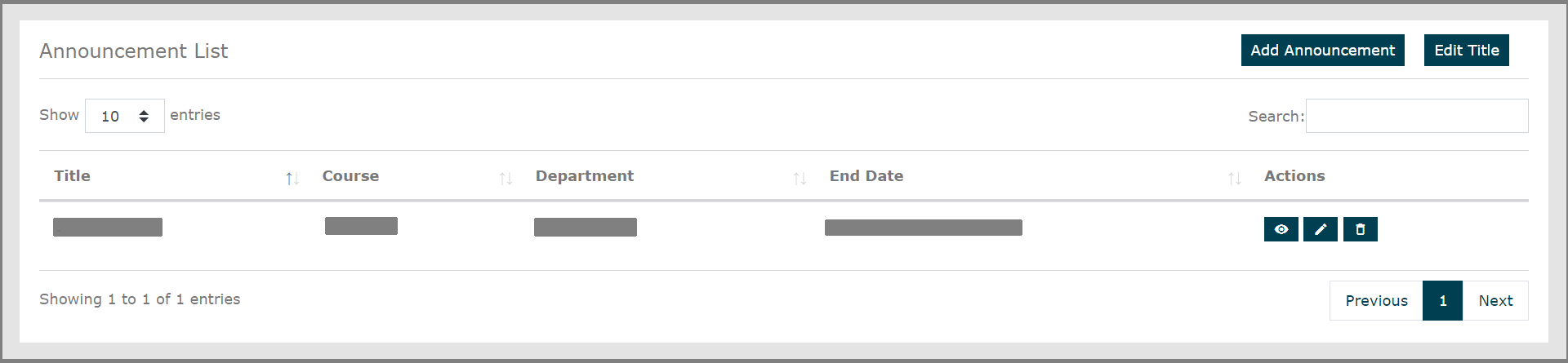
Choose the eye option under Actions to view all the details of that Announcement.
Use the pencil icon under Actions to edit the information of the created Announcement.
Use the trash icon under Actions to permanently delete an Announcement.
How to Add an Announcement?
Click the Org Management option under the Admin section.
Select the Announcements option.
Click Add Announcement on the top right side.
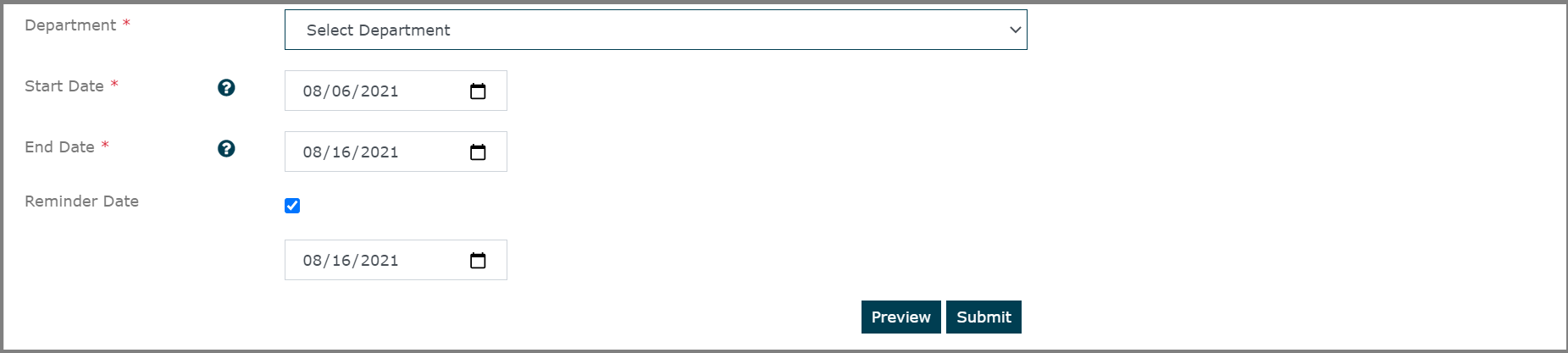
Fill in the details asked.
Select the Department related to the Announcement.
Choose the Start Date and End Date for the Announcement.
You can select the Reminder Date if you wish to be reminded on a particular Date.
Click Preview to see how the Announcement looks like.
Click Submit to successfully create an announcement.
How to Edit a Title?
Click the Org Management option under the Admin section.
Select the Announcements option.
Click Edit Title on the top right side.

By default, it will be named “Announcement List”. You can edit the name of the List as per your wish by entering your desired Title.
Click Cancel to not change the title of the Announcement.
Click Save to successfully save the new title name.