Search for answers or browse our knowledge base.
Users Group
Overview
The Users Group option allows you bring together a set of target users for your Phishing Campaigns.
User Groups
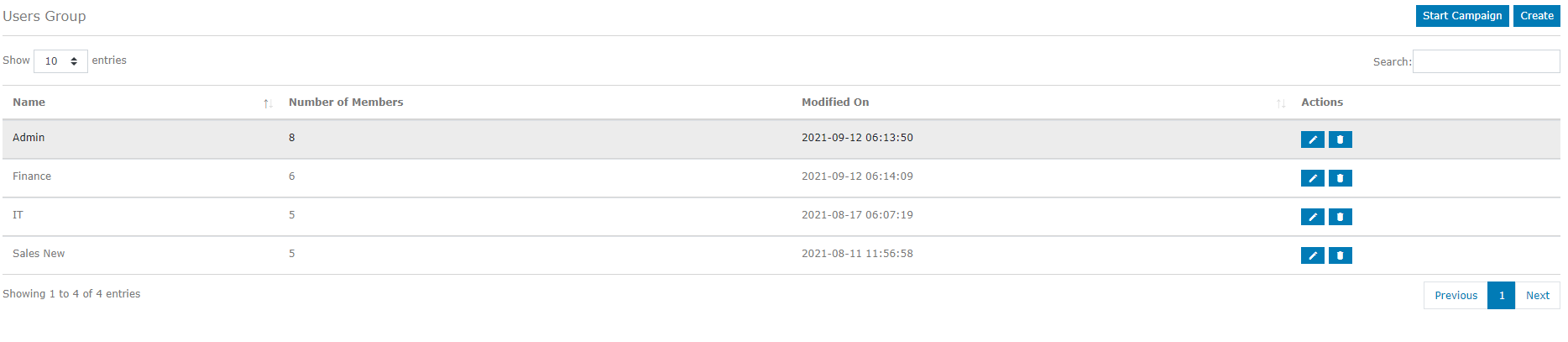
Click the Users Group option under the Phishing section.

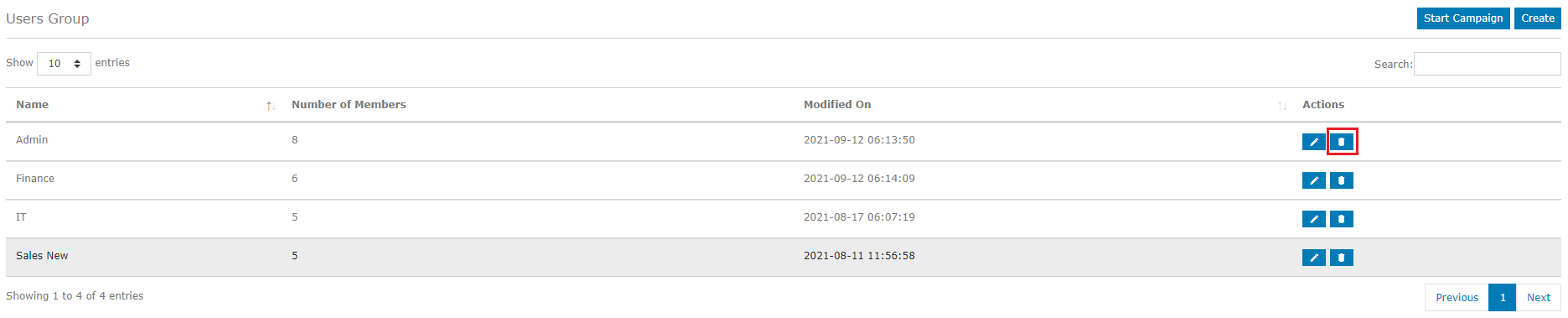
The Users Groups available in the system will be displayed. You can Create a new Users Group, Search for Users Group, Edit or Delete existing Users Groups.
Updating an Users Group
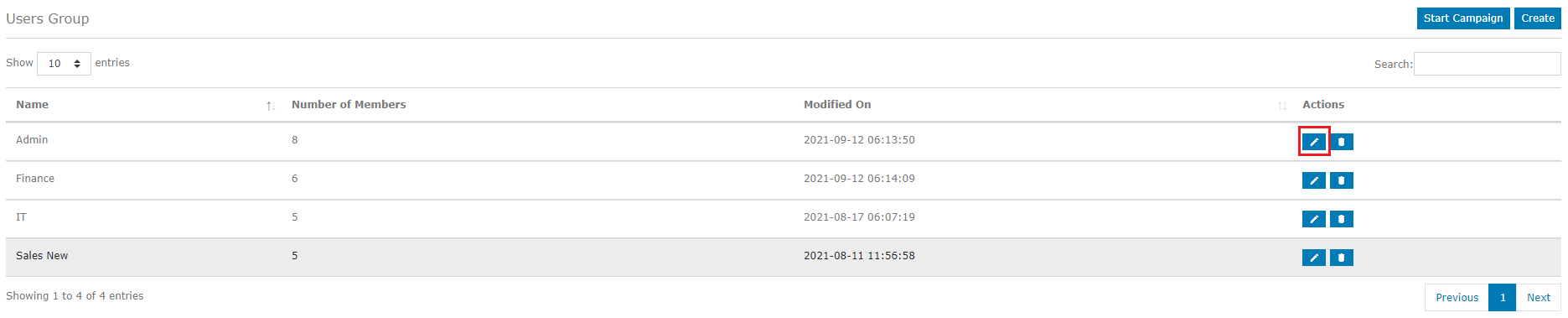
You can update an existing Users Group by adding / removing users by clicking the “Pencil” icon under Actions.
Adding Users to the Users Group
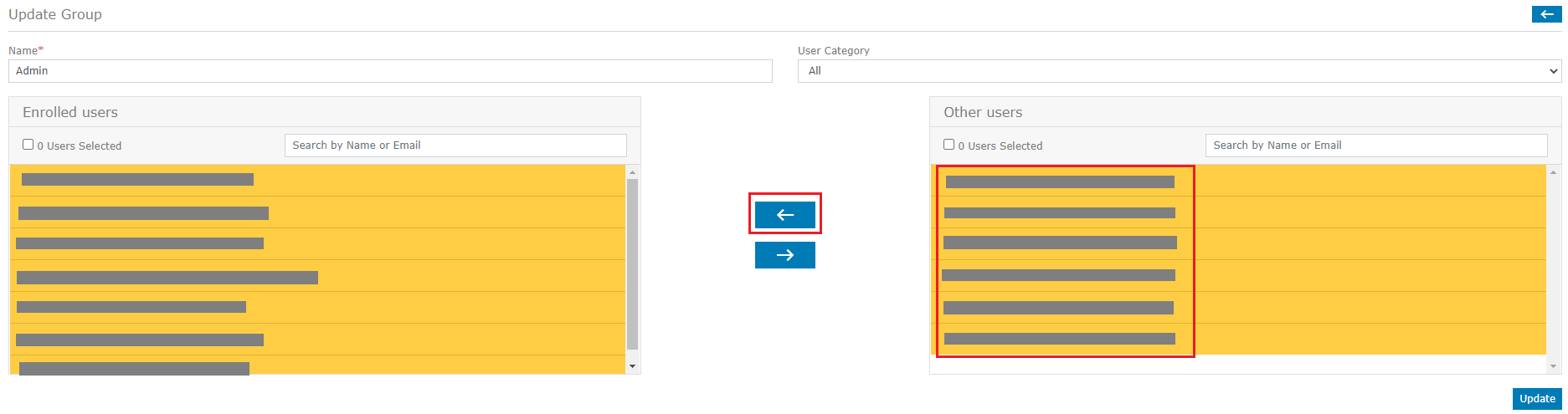
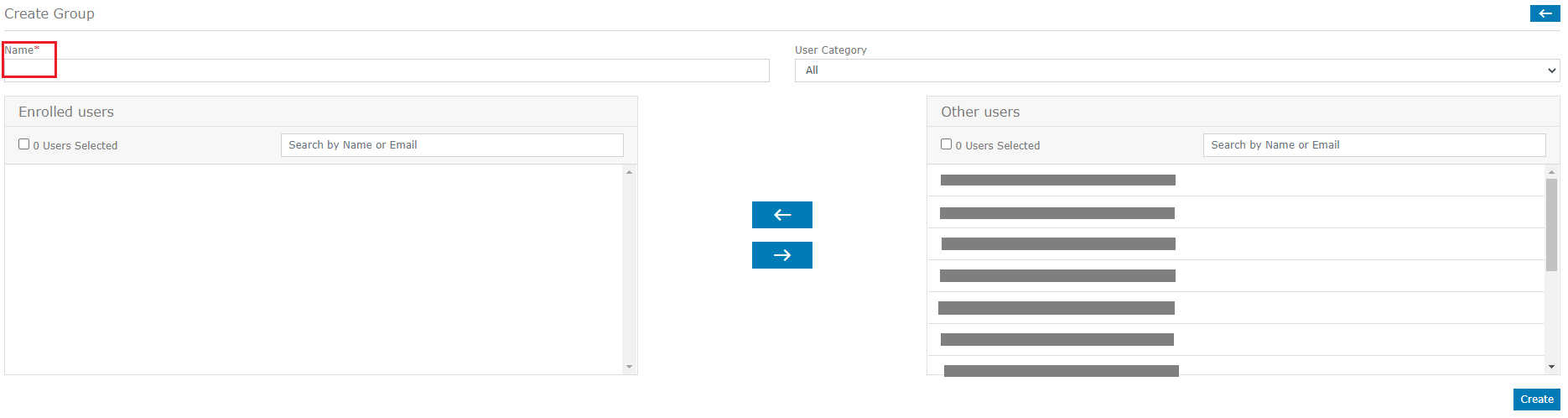
The Users available to be added to the Users Group are shown on the right side. Select the Users you would like to add to the Users Group. You can also search for an individual user using their name or Email ID. Click the “Left” arrow icon in the center to add the selected users.
NOTE: You can add the same user in more than one Users Group.
Removing Users from the Users Group
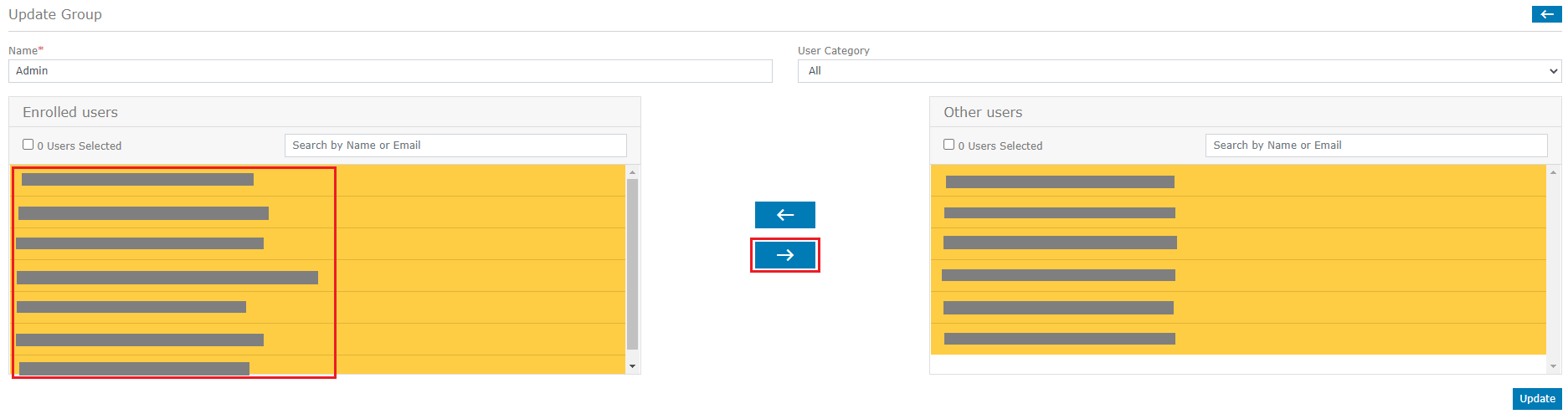
The Users available in the Users Group are shown on the left side. Select the Users you would like to remove from the group. You can also search for an individual user using their name or Email ID. Click the “Right” arrow icon in the center to remove the selected users from the group.
Deleting an Users Group
You can delete an Users Group by clicking the “Delete” icon under Actions.
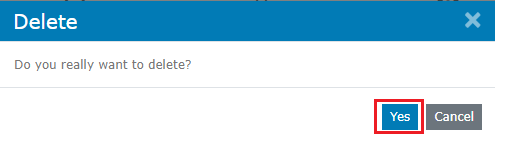
Click “Yes” on the prompt that appears and the Users Group will be deleted.
Creating an Users Group
You can create a new Users Group by clicking the Create option on the top right side of your screen.

Enter the Name of the Users Group.
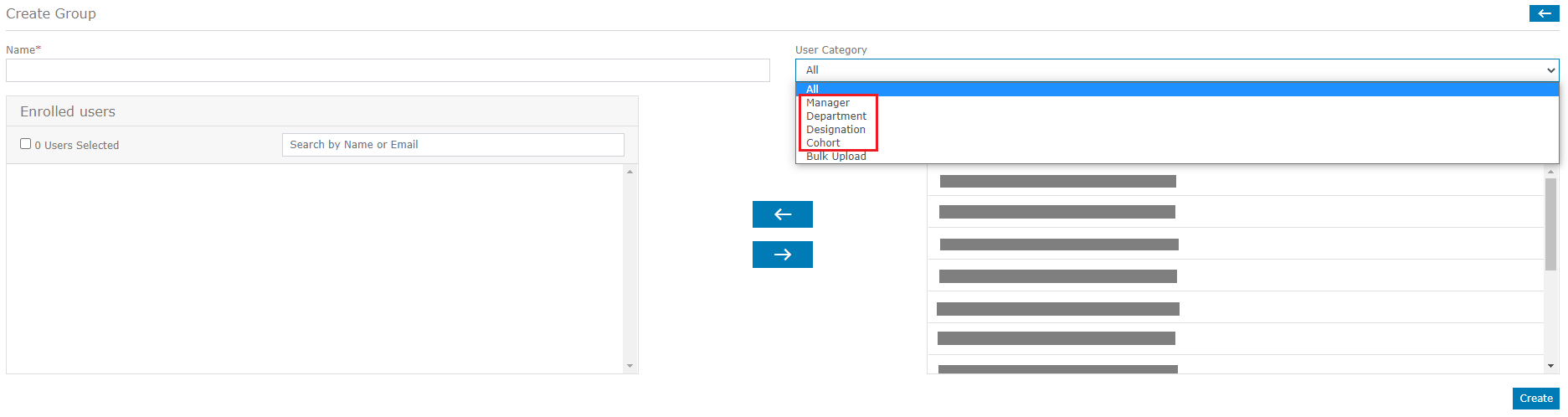
The User Category option allows you to filter users based on Managers, Department, Designation and Cohort. Select the Users you would like to add to the Users Group. Click the “Left” arrow icon in the center to add the selected users. Click “Create”.
Bulk Upload
You can also do a bulk upload of the users using the “Bulk Upload” option. The recommended file format for bulk upload is CSV. You can download a sample format by clicking the “Sample” option.

Click “Choose File” to upload the file from the file destination and click “Save”.