Search for answers or browse our knowledge base.
One Login SSO integration with eLearnPOSH
One Login SSO integration with eLearnPOSH
In this tutorial, you’ll learn how to integrate eLearnPOSH with One Login (SAML). When you integrate eLearnPOSH with One Login, you can:
- Control in One Login who has access to eLearnPOSH.
- Enable your users to be automatically signed in to eLearnPOSH with their One Login accounts.
- Manage your accounts in one central location – the One Login portal.
Prerequisites
To get started, you need the following items:
- A One Login subscription. If you don’t have a subscription, you can get a Free Account
- eLearnPOSH single sign-on (SSO) enabled subscription.
Step 1: Configure OneLogin SSO
To configure the integration of eLearnPOSH into One Login, you need to add eLearnPOSH from the gallery to your list of managed SaaS apps.
- Sign in to the One Login Official account.
- On the right navigation pane, select the Administration.
- Navigate to Applications and then select Applications.
- Select the Add App on the top-right of the page.
- Type eLearnPOSH in the search box and select eLearnPOSH from the results panel and then Save the app.
Wait a few seconds while the app is added to your tenant.
Step 2: Configure eLearnPOSH SSO – to configure the single sign-on settings on the application side
Select SSO, Share the X.509 Certificate, Issuer URL, SAML 2.0 Endpoint and SLO Endpoint with the eLearnPOSH Support Team (support@succeedtech.com)
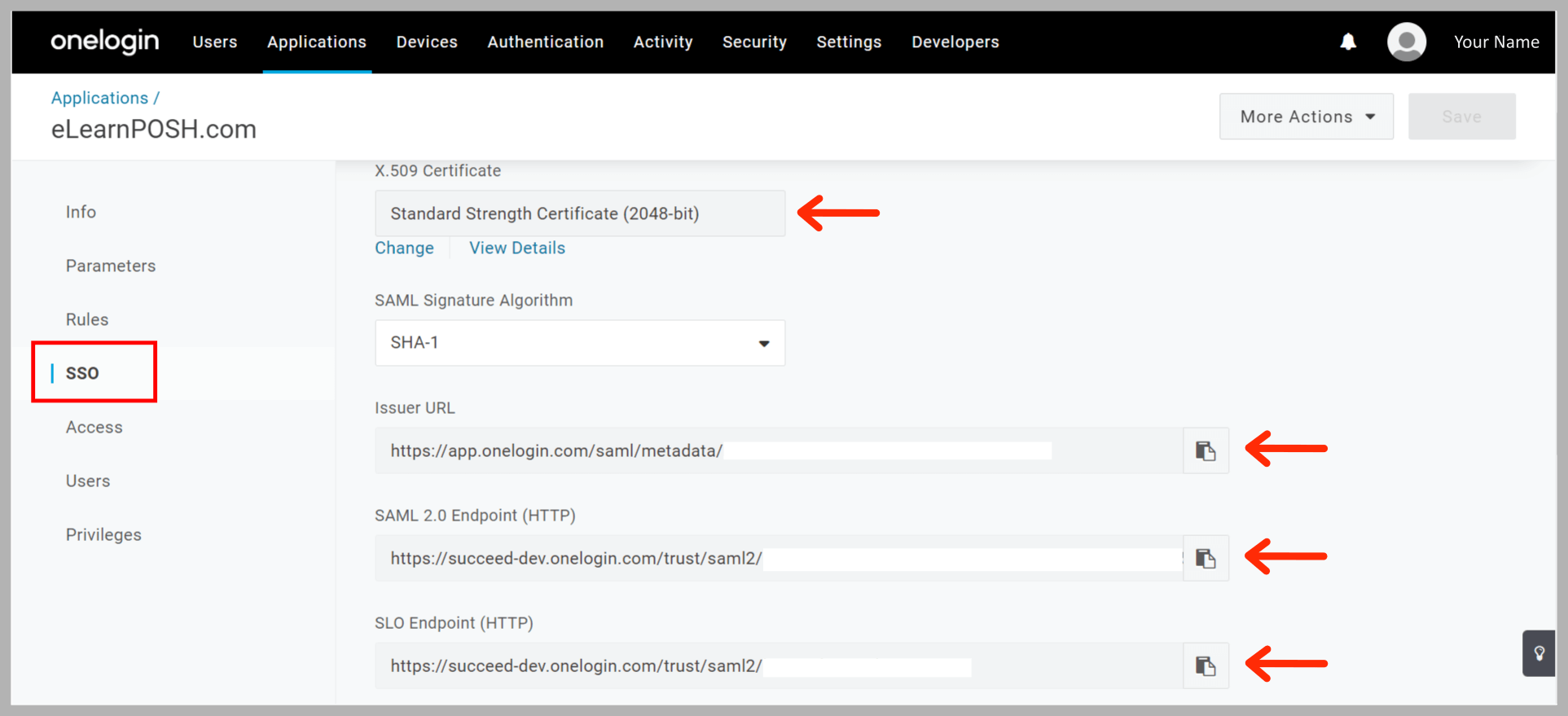
OR
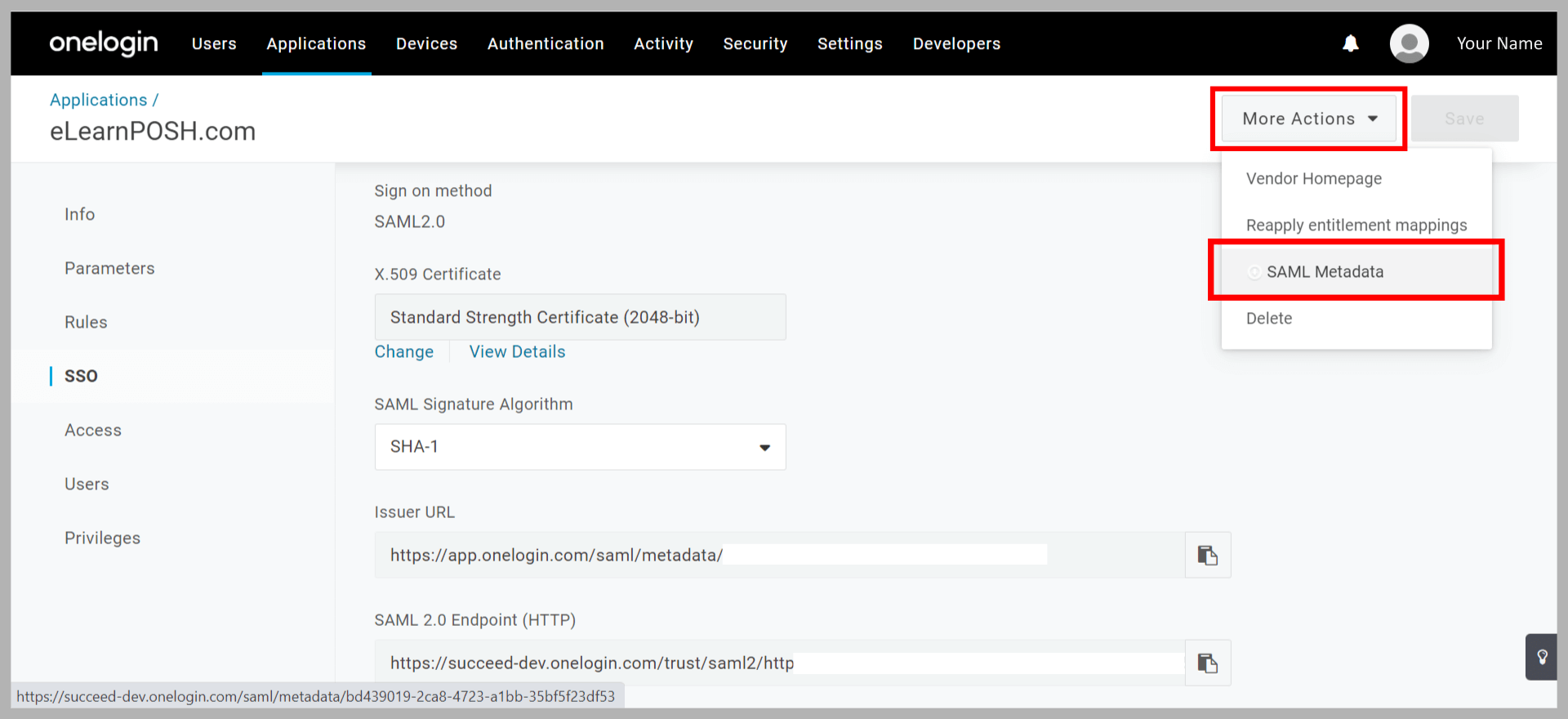
Select SSO, select More Actions and select SAML Metadata. Share the downloaded file to the eLearnPOSH Support Team (support@succeedtech.com).
Step 3: Configure One Login SSO – to enable your users to use this feature
- In the One Login portal, find the User’s section and select User.
- On the User’s page, select the user.
- On the User’s page, Select Applications and then click the ADD Symbol.
- Select the eLearnPOSH app and select Continue and Save.
Step 4: Test SSO
In this section, you test your One Login single sign-on configuration with the following options.
- On the right navigation pane, click your profile and then App Portal in One Login
- Select the eLearnPOSH app and you should be automatically signed in to the eLearnPOSH portal for which you set up the SSO.