Search for answers or browse our knowledge base.
To create an Inquiry Panel and adding Witness
This document provides the steps for giving inquiry access to other IC members and adding the witness’s details.
The Complaint Dashboard allows you to view a list of raised complaints, including the complaint number, date, status, and age of the complaint.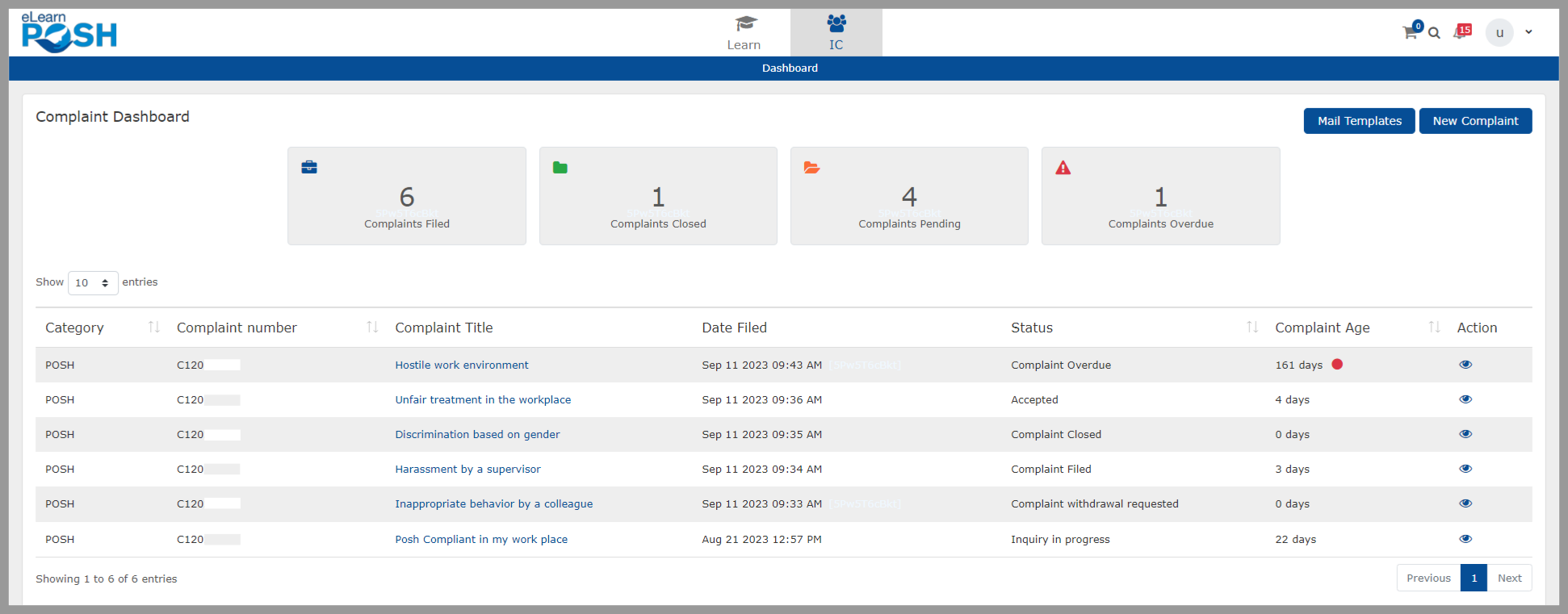
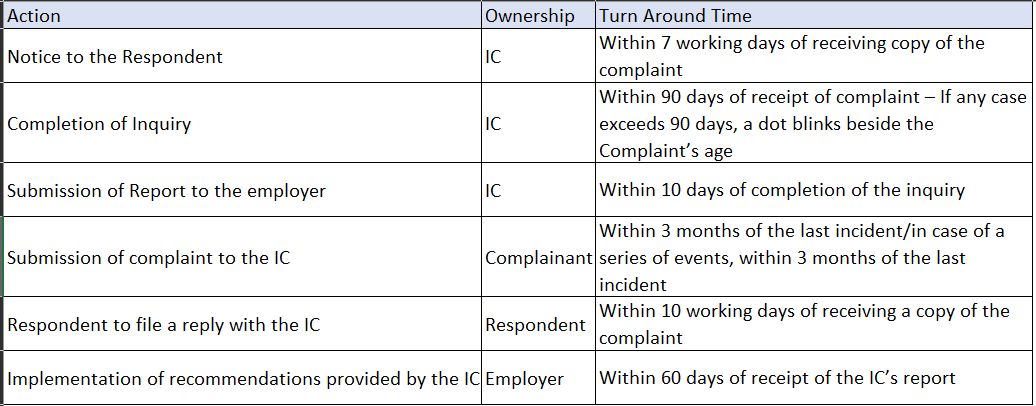
The POSH Law, 2013 establishes a specific timeline for conducting inquiries. This is to ensure that the aggrieved women receive a swift response to their complaints and that appropriate actions are taken to address the issues they face.
FYI, refer to the table given below to understand the turnaround time for the IC while handling the complaint.
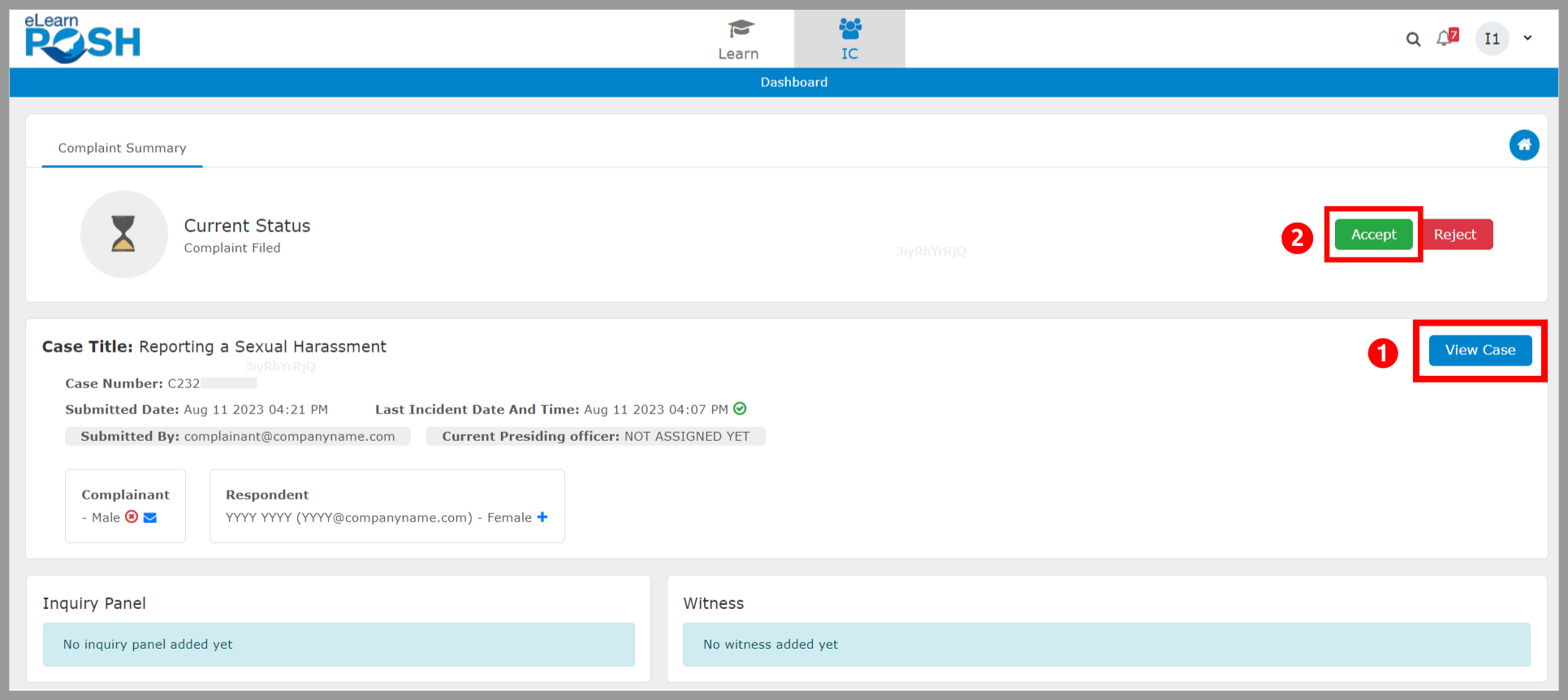
 You can view the details of the complaint and then “Accept” the complaint. If it is not a sexual harassment complaint, you can reject or redirect the complaint to the respective committee. Once the Complaint is accepted, you’ll be able to create an Inquiry Panel.
As per Rule 7(7) of the POSH Rules of 2015, it is mandated that a minimum of three IC members, including the Presiding Officer, must be present during an inquiry. By having at least three IC members, including the Presiding Officer, the inquiry can benefit from a diversity of perspectives and expertise, which is crucial in addressing the complexities and nuances often associated with such cases. This requirement has prompted us to implement a feature for establishing an inquiry panel. We recommend including external members in the panel in order to promote neutrality in the inquiry process.
To create an Inquiry Panel
Step 1: In the Inquiry Panel widget, click the “+” icon to add the Internal Committee Members.
Please note: The inquiry panel should have at least three members, including a required Presiding Officer and an optional External Member. 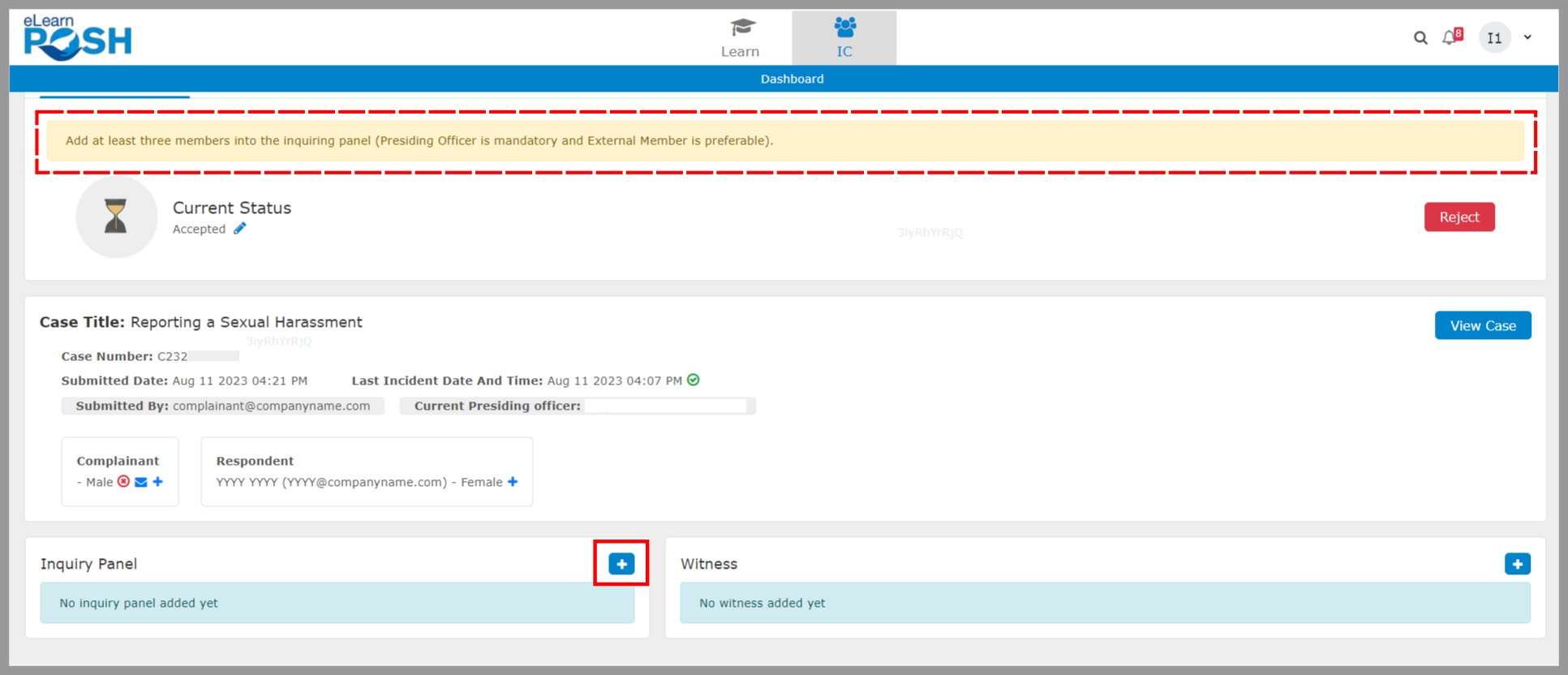 Step 2: Select the IC Members from the drop-down to add to the panel and click “Save”.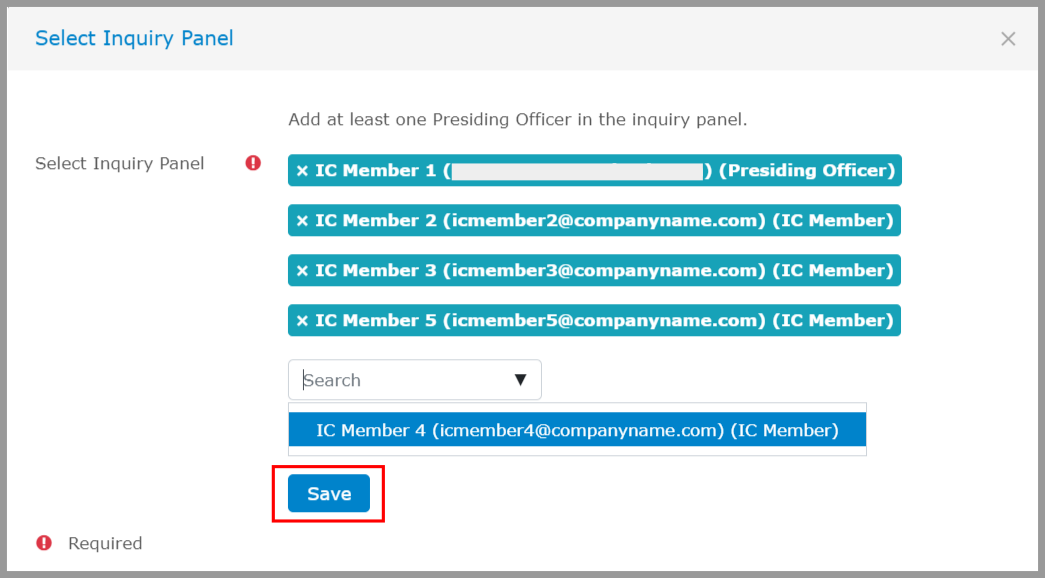
To add the Witness’s details
Step 1: In the Witness widget, click the “+” icon to add the details of the witnesses.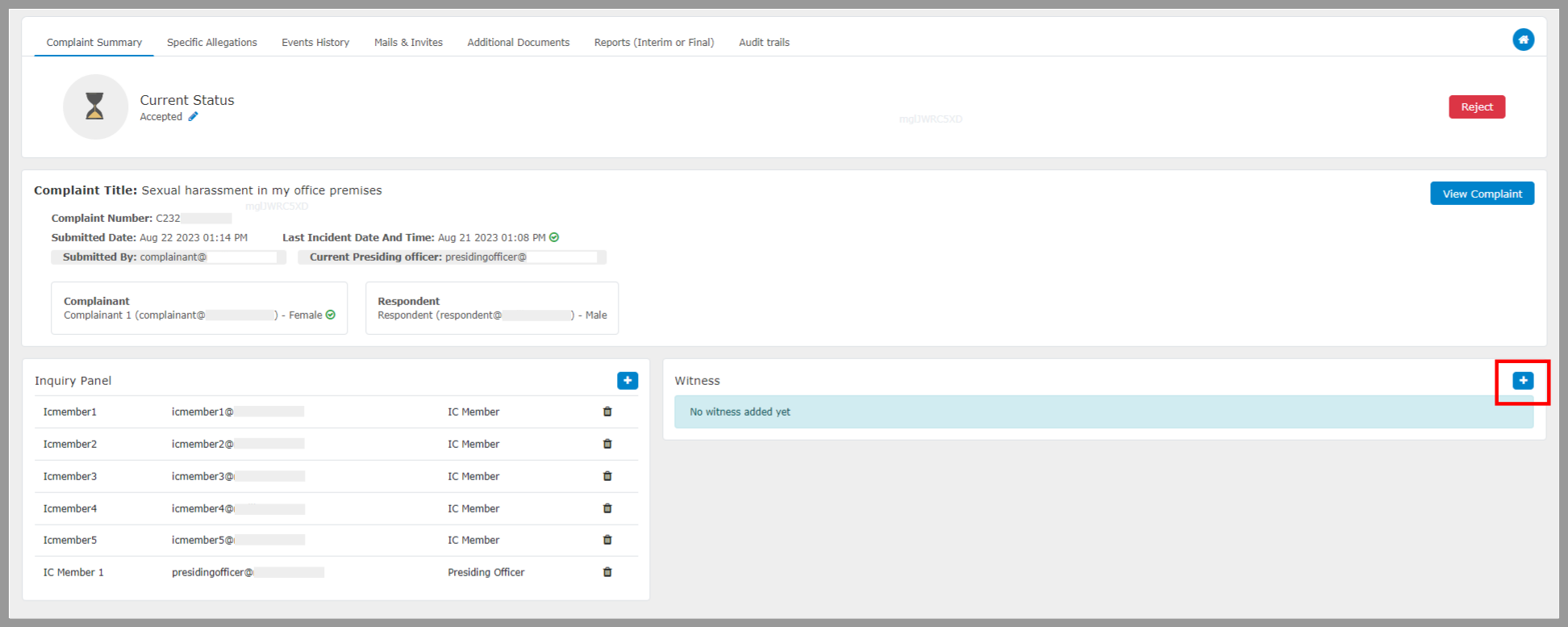 Step 2: Select the Witness’s Email ID from the drop-down (if available on the LMS). If the Email ID is not available on the portal, select “Not a user in the system” and enter the witness’s Email ID, First Name, and Last Name. Also, choose the “Witness of” option and click Save.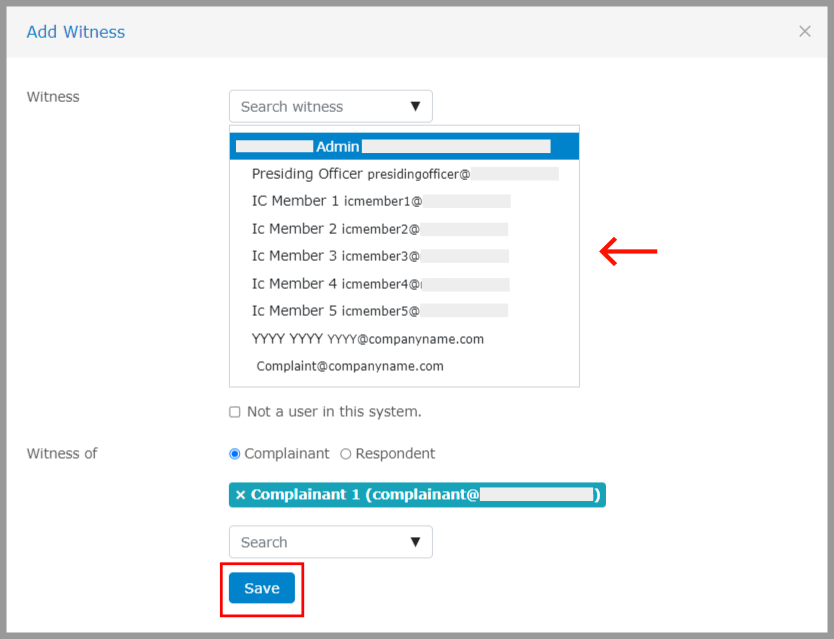
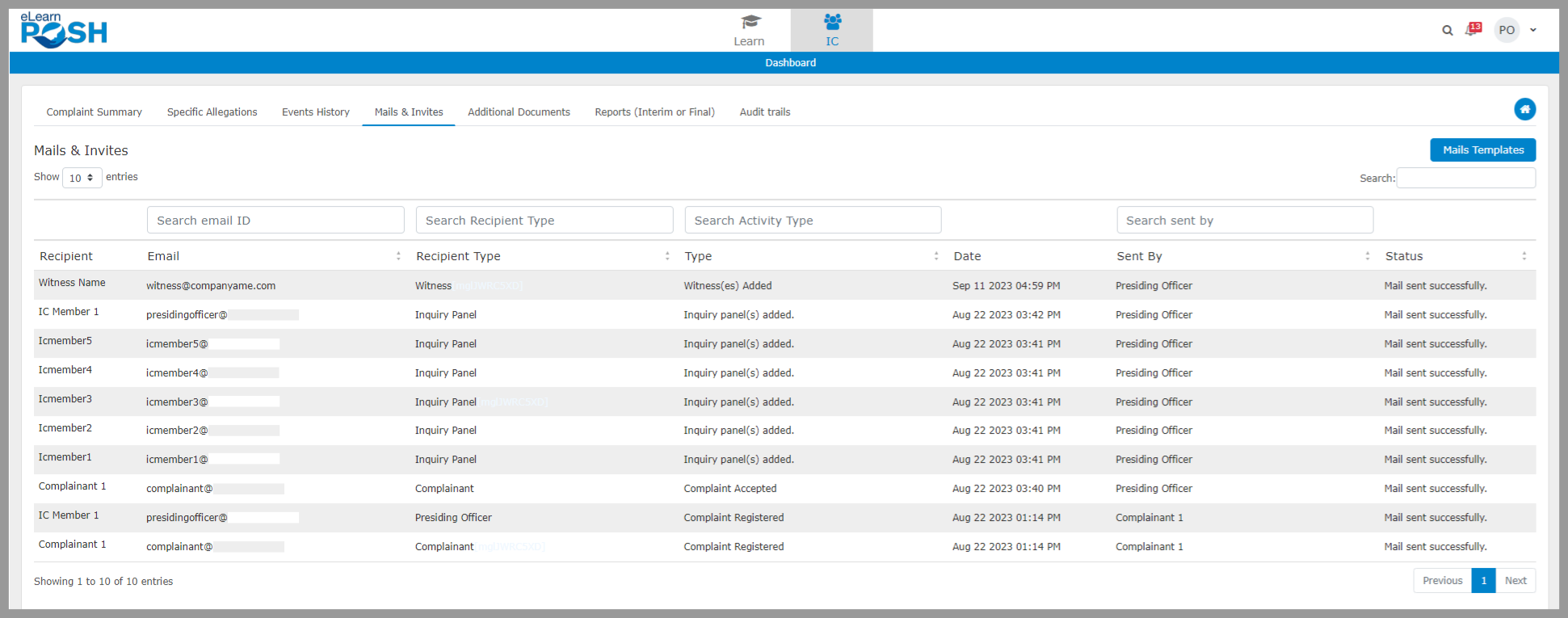
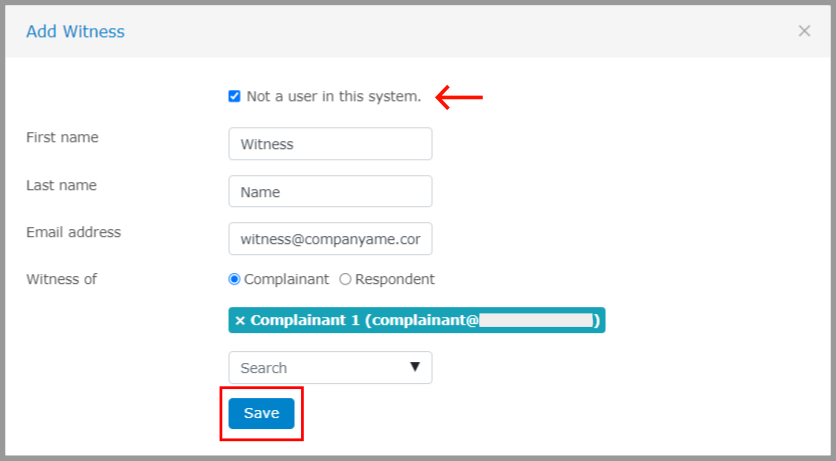 Please Note: For each activity, such as adding an IC member to the panel or introducing a new witness, emails will be generated by the Learning Management System (LMS) and sent to the respective email addresses.