Search for answers or browse our knowledge base.
Scheduling an Event
This document provides the steps to schedule an event/ activity.
Login to the Complaint Management System and view a complaint.
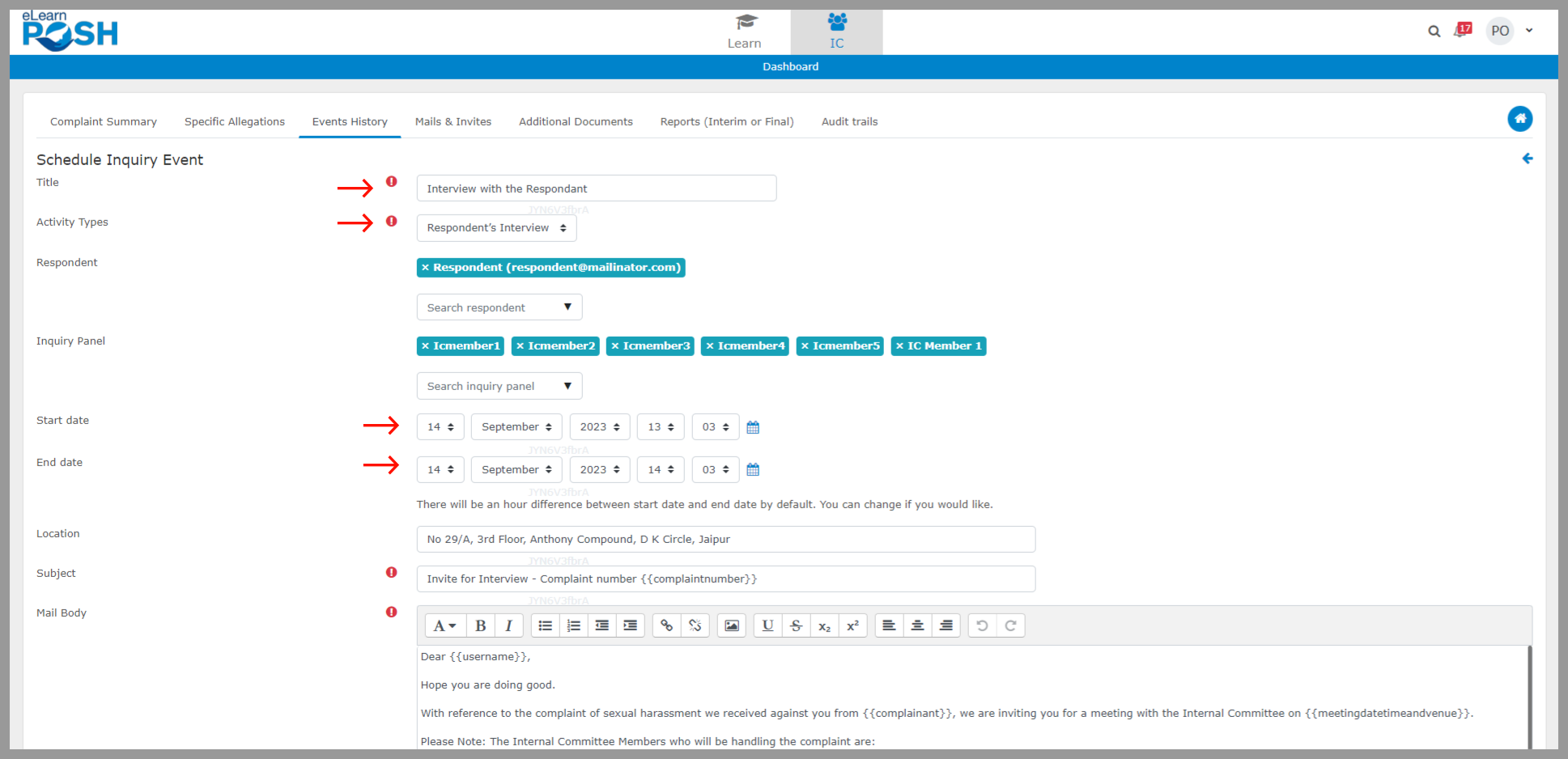
Step 1: The Events History is where you can find a record of all the meetings organized by the IC with parties or witnesses. It is a valuable resource for tracking and reviewing the various interactions and discussions that have taken place throughout the inquiry process. Please note that only IC can schedule a meeting using the CMS. Choose “Events History,” and then, under the “Add an Event or Activity” option, select “Schedule an Event.”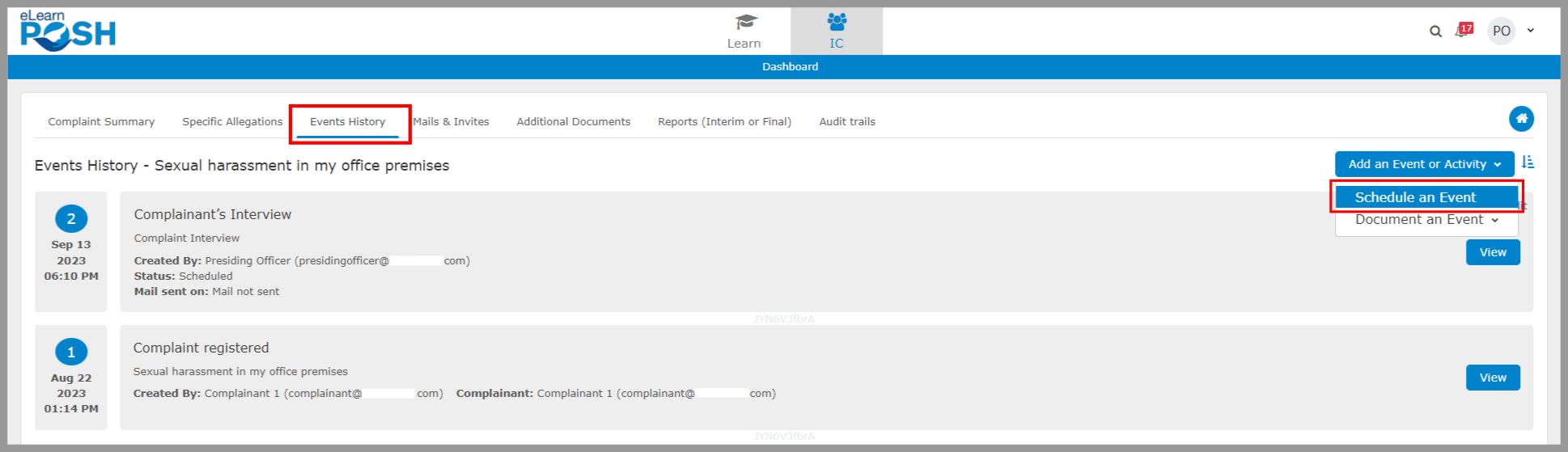 Step 2: Fill in the meeting details, including the Title, Activity type, date, and location (if necessary). We have provided a sample email for your reference and the same can be customised by you as per your specific requirements.
  Step 3: Click on “Save” to schedule the meeting.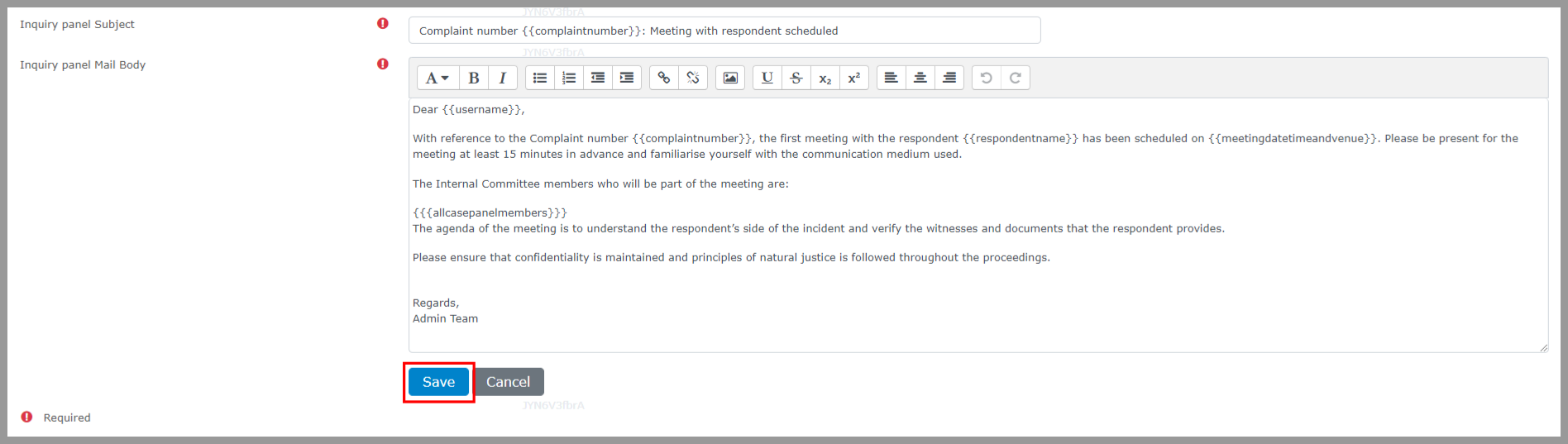
You can “View” or “Edit” the event or interview details at any time. 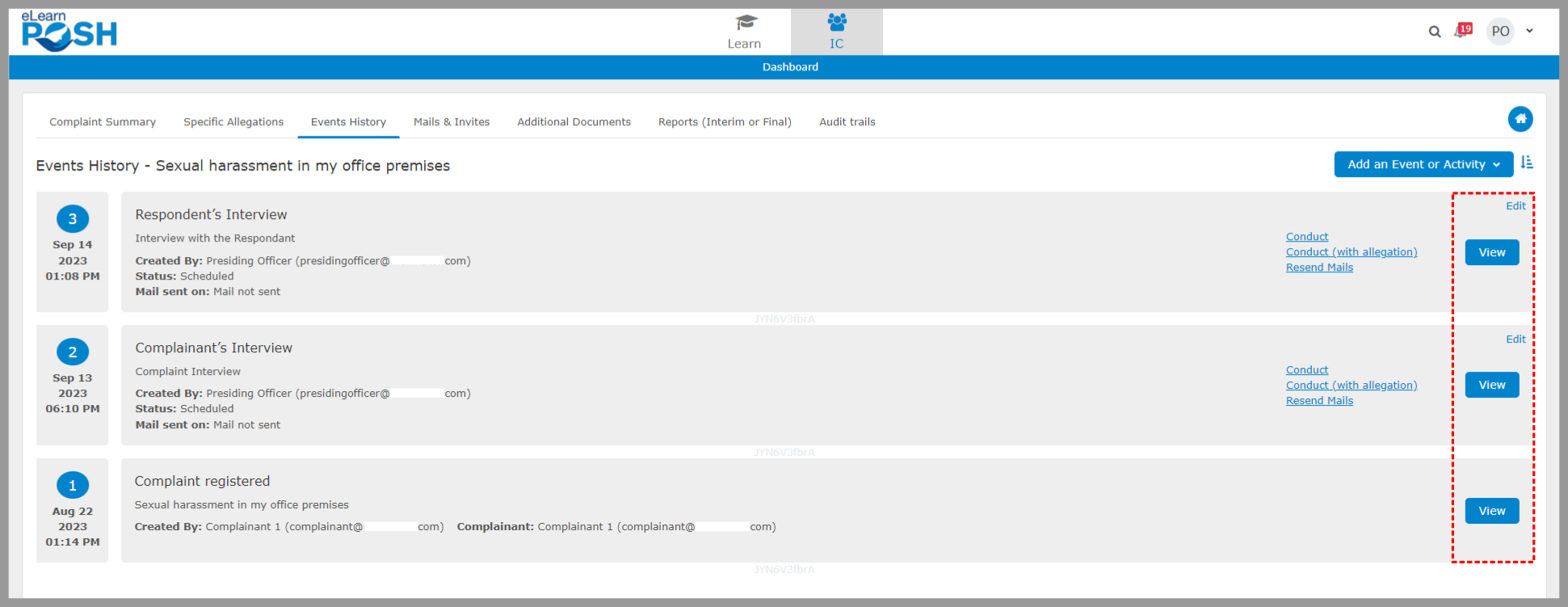 As per Rule 7(2) of the POSH Rules, 2013 the respondent is supposed to respond the the complaint within 10 days of receiving the complaint. If the respondent does not respond within 10 working days of receiving a copy of the complaint, the panel members will be notified with an “overdue” text blinking as shown below.
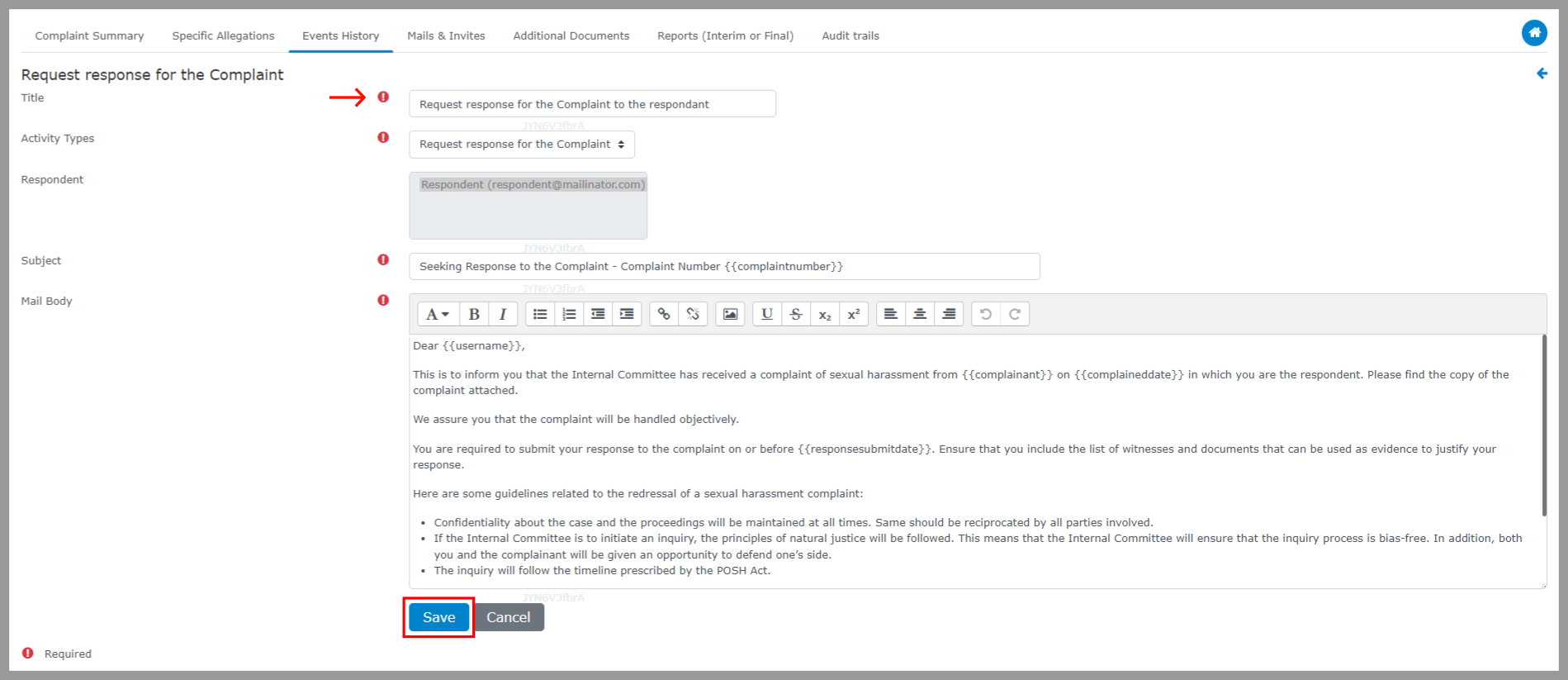
 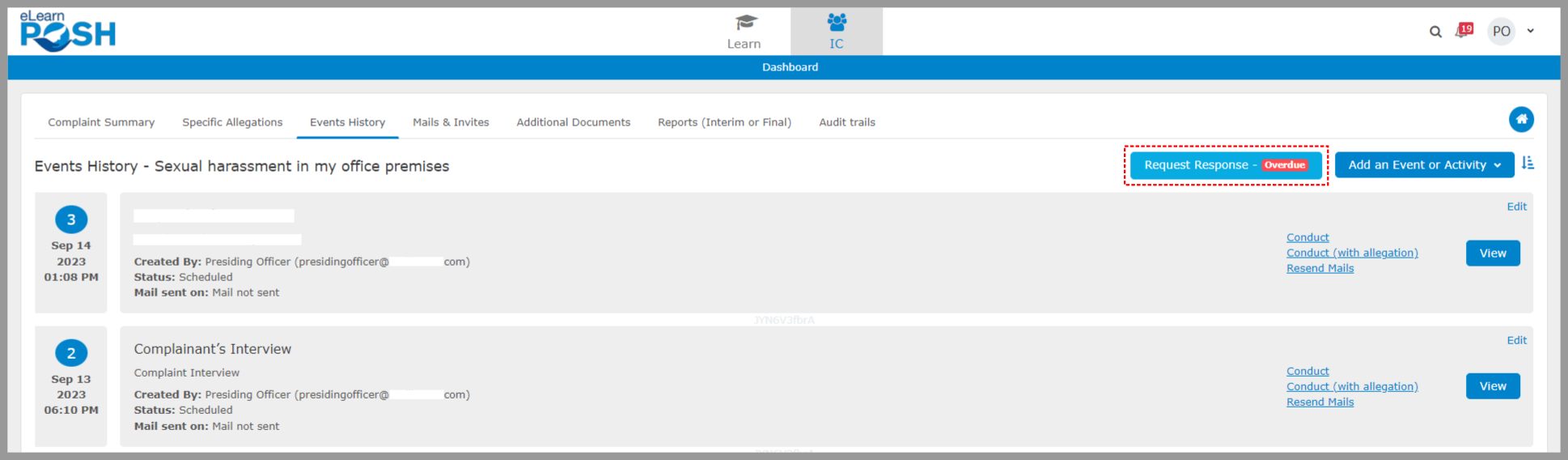 Click on the “overdue” text notification button to send an email notifying the respondent regarding the delay, then select “Save” to request a response from them.