Search for answers or browse our knowledge base.
Access the Complaint Management System
The Complaint Management System (CMS) is an innovative tool introduced by eLearnPOSH, designed to streamline the process of documenting inquiries related to the POSH. This system efficiently records inquiries from the moment they are initially submitted as complaints, through to the creation of a comprehensive final report, all within a unified platform. The documentation of the entire inquiry process greatly facilitates the automatic generation of a final report upon inquiry completion.
Now let us understand the steps to log in to the e-learning portal and access the Complaint Management System.
Step 1:
Log in to the portal and Select the “IC” Tab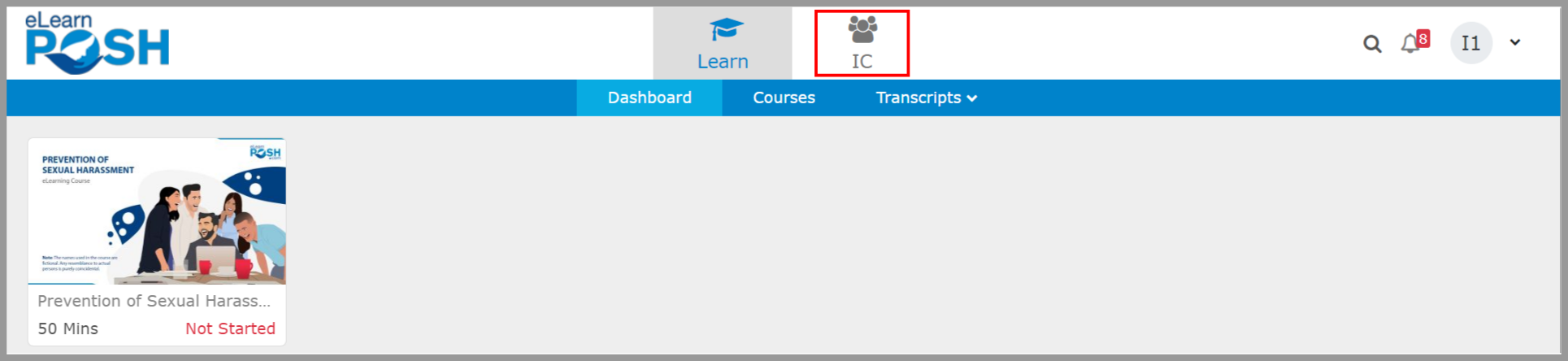 Step 2:
Select the “Complaint Management” widget under the IC tab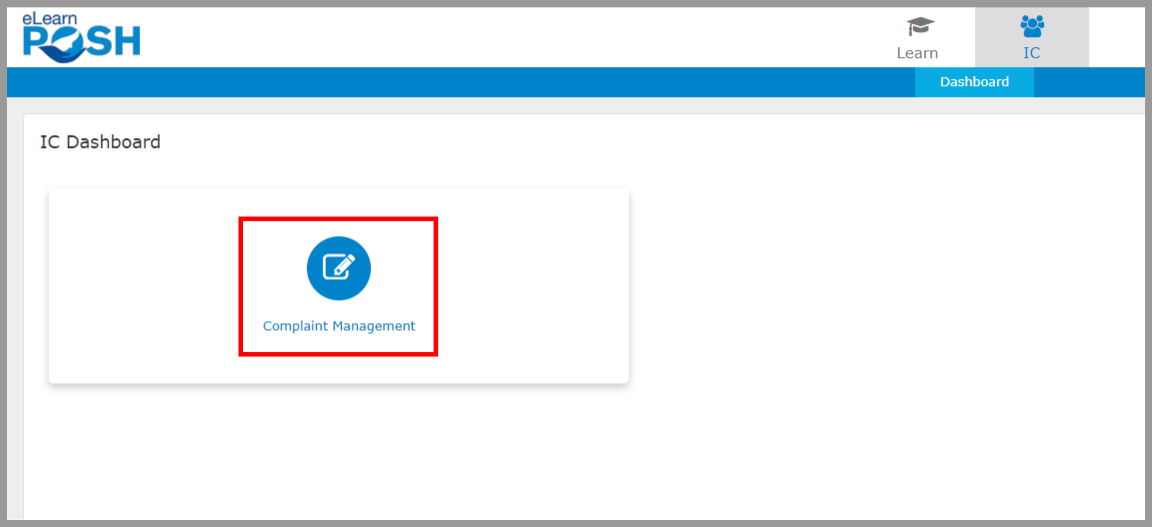 Step 3:
Enter the Captcha and click the “Get OTP” button.
Please Note: If you did not receive any OTP, click the “Resend OTP” option when available or contact support@succeedtech.com
A POSH inquiry involves handling a significant amount of sensitive information pertaining to the parties involved, including details of the complaint, statements from the individuals involved, and any supporting evidence. The POSH Act, 2013 prohibits the disclosure of any sensitive information relating to the details of the complaint or the inquiry proceeding. This indicates the necessity to uphold the confidentiality of the information related to the inquiry. To safeguard the sensitive information discussed in the inquiry, an additional step of logging in with an OTP has been integrated into the process.
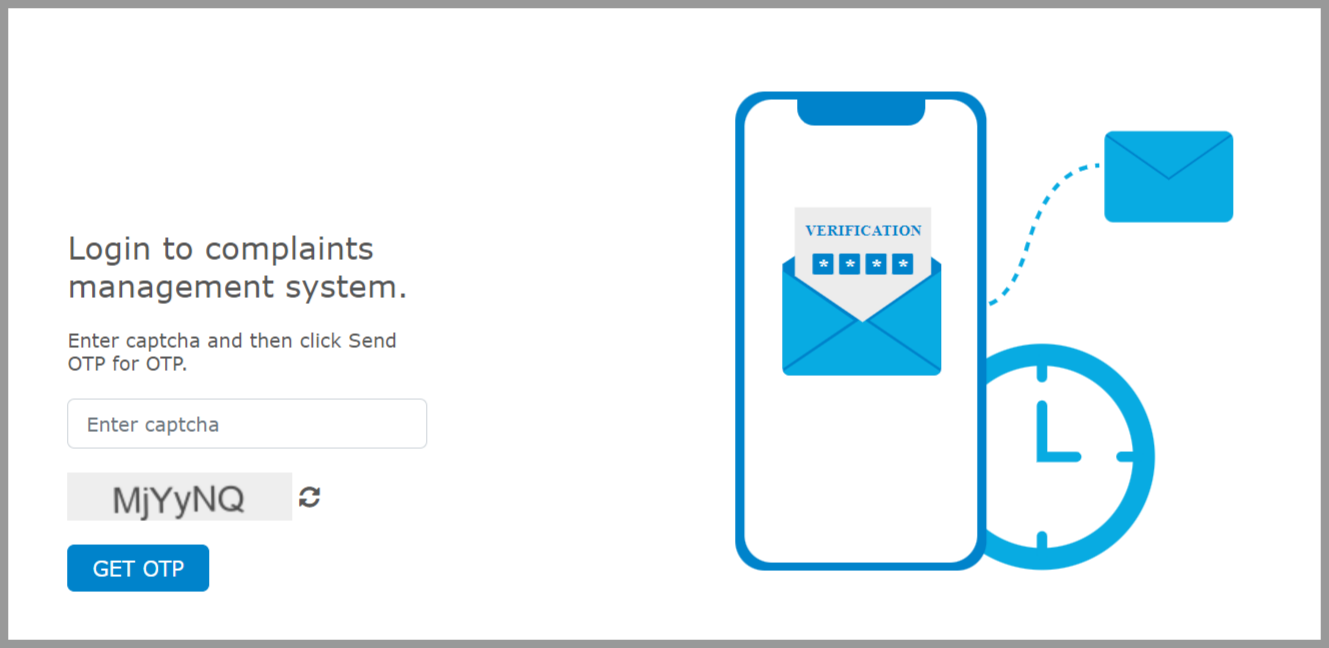 Step 4:
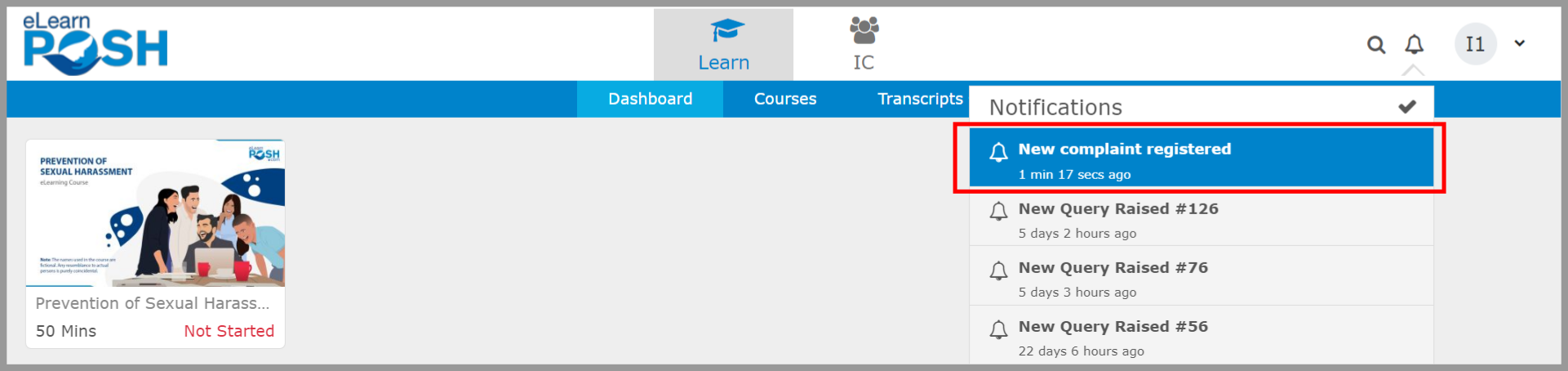
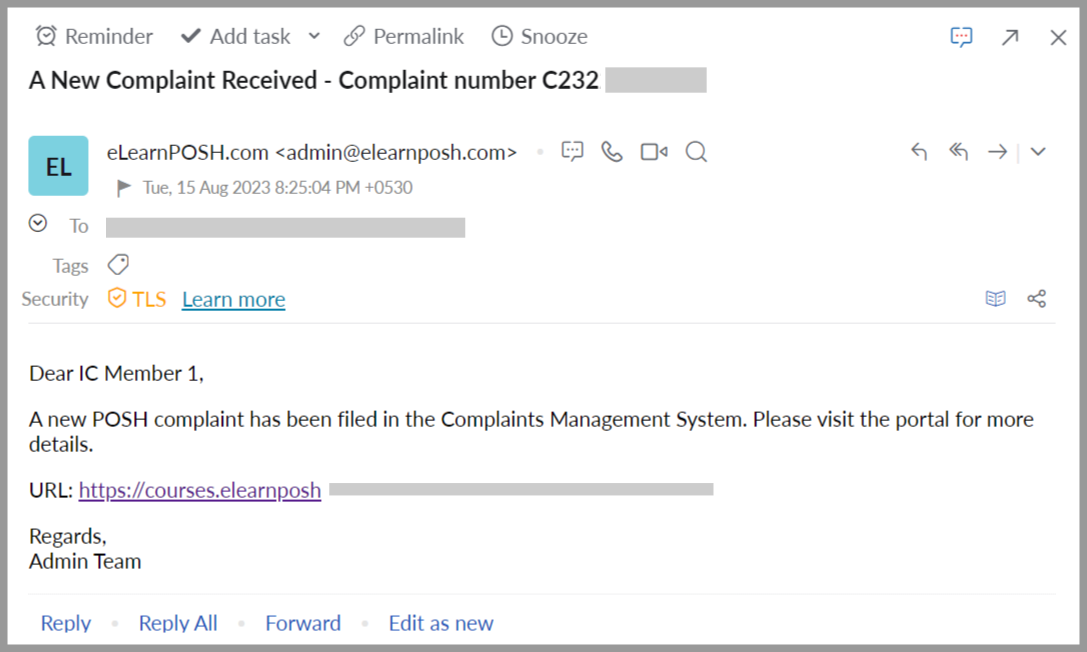
Enter the OTP, and if you wish to save the credentials on your browser for 3 days, select the “Remember this device for 3 days” option. Click “Verify and Proceed” to access the Complaint Dashboard.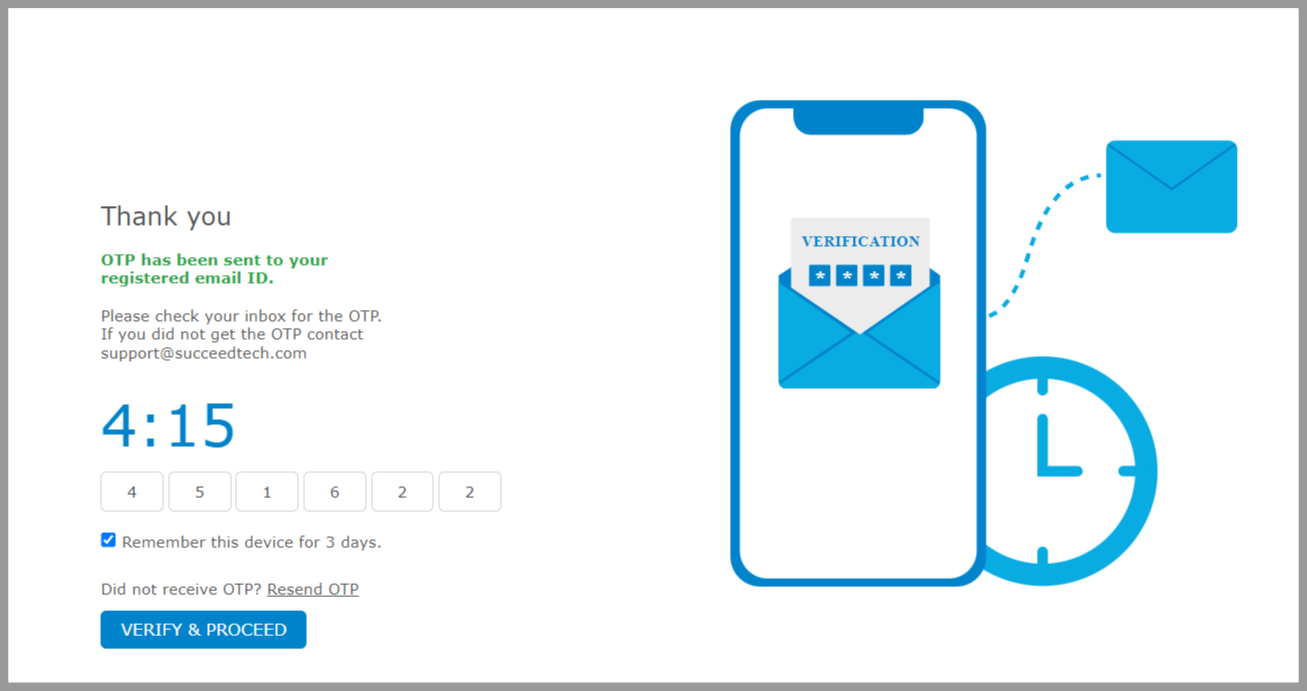 All the notifications will be received on the LMS and to your email ID (which is registered and enrolled in the eLearnPOSH.com’s portal) as shown below.
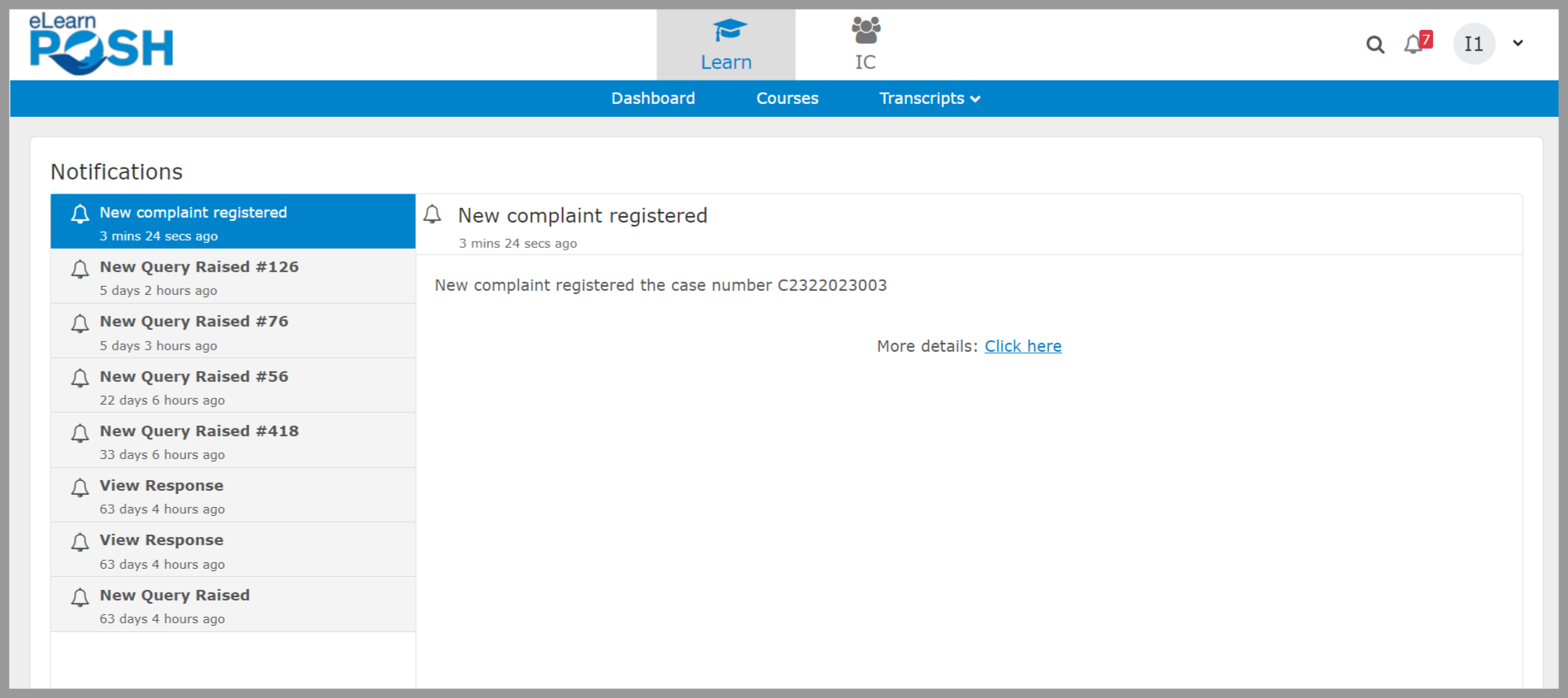
 On the LMS, you can view the notifications shown below.
 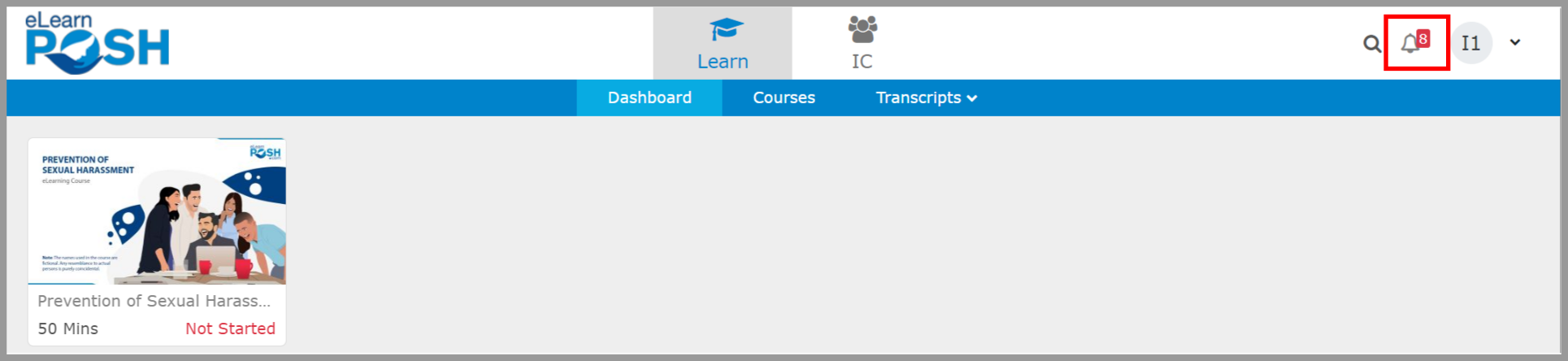 Click on each notification to know more.